User Manual

blog details

20 Nov 2023


Registration

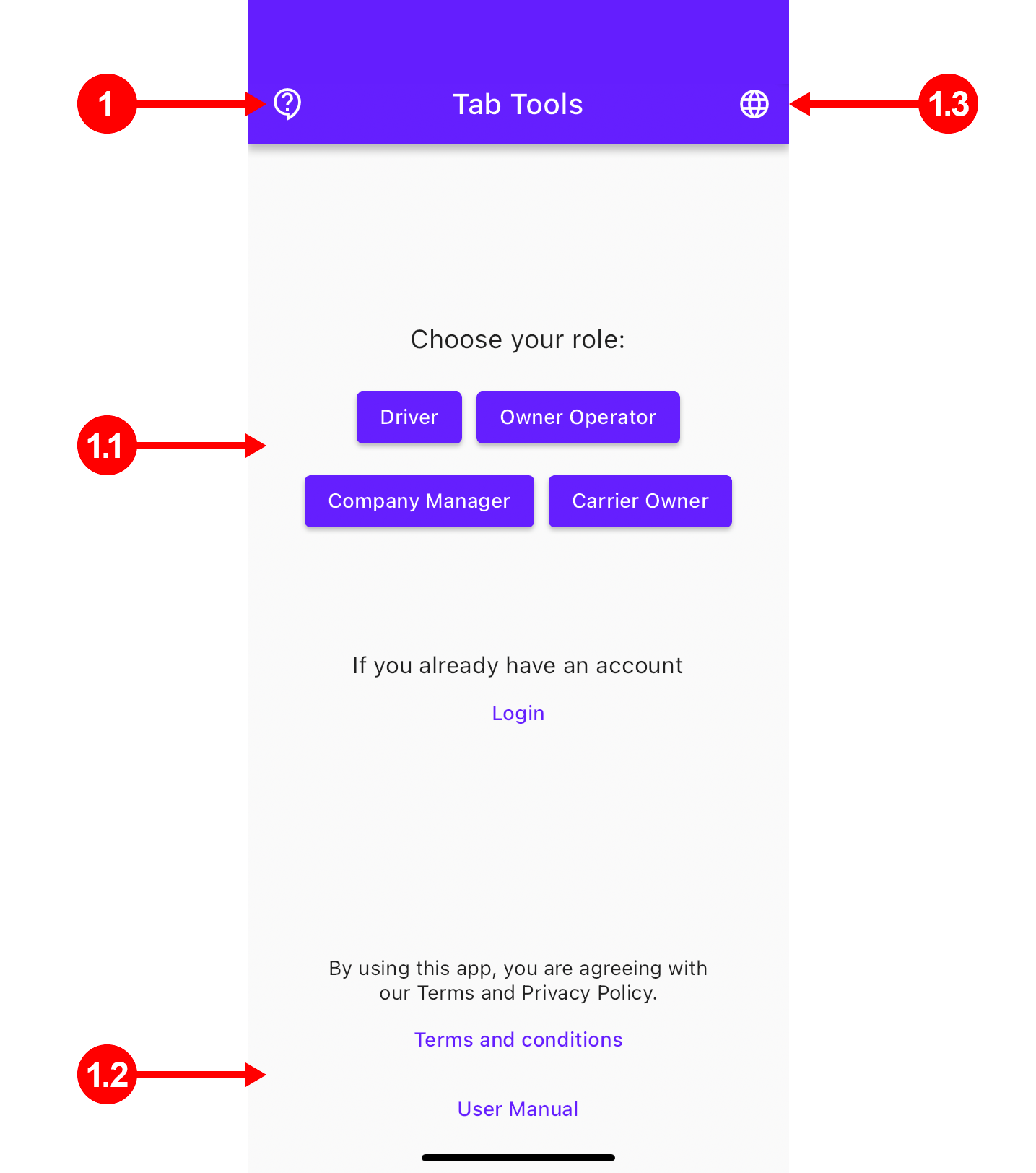
1. Authorization Support: Forgot Password, Get Help, Bug Report.
1.1 Define your company role for a customized app experience.
1.2 Rules and guidelines. Learn about app functionality before use.
1.3 Five languages are available for choose.


Manual Submission

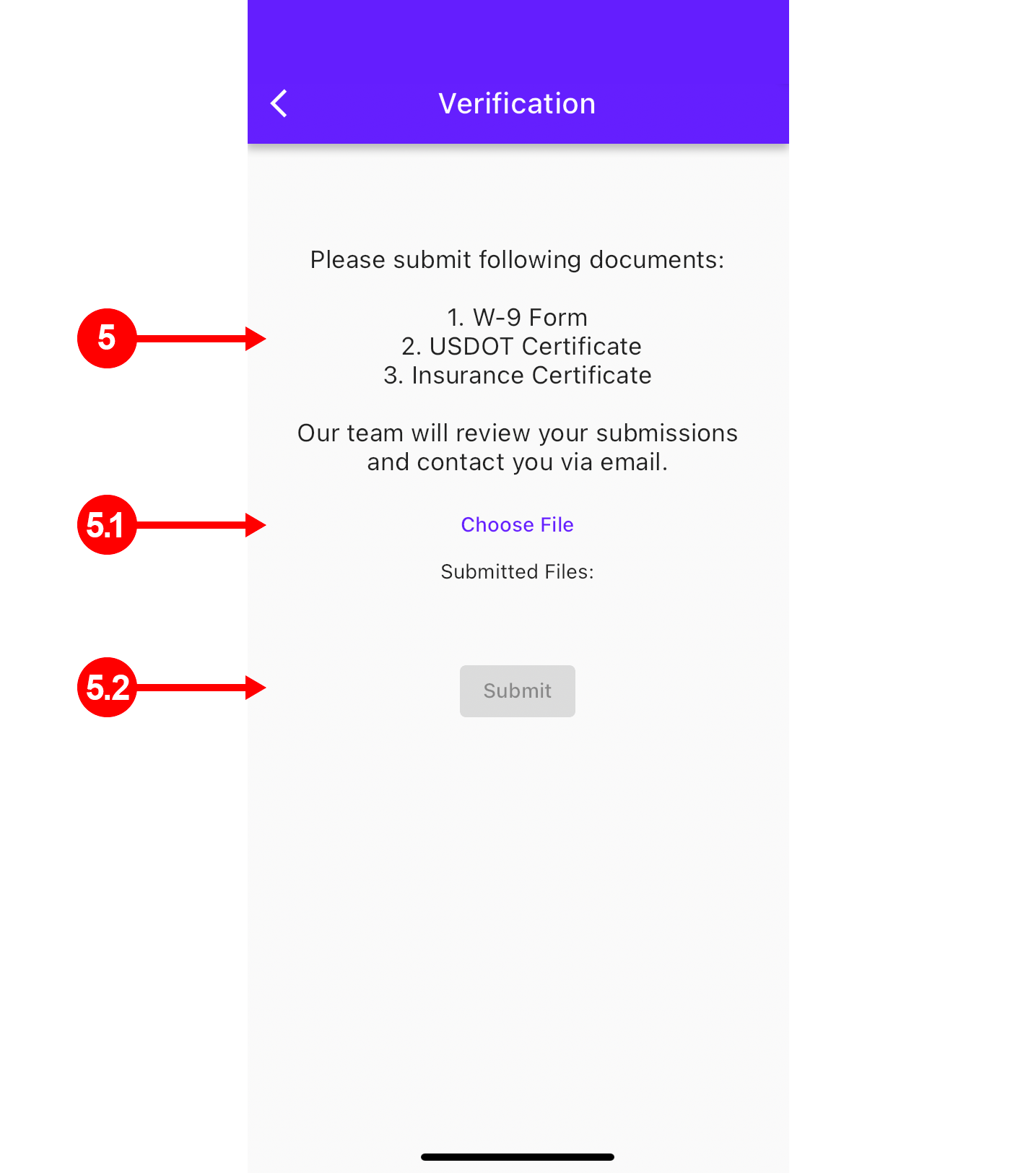
5. Documents for Authorization: Provide the listed documents for the manual authorization process.
5.1 Choose File: Upload documents one by one by clicking on button for the authorization process.
5.2 Submit Button: Activate the submit button by uploading at least one document.


Loads Manage

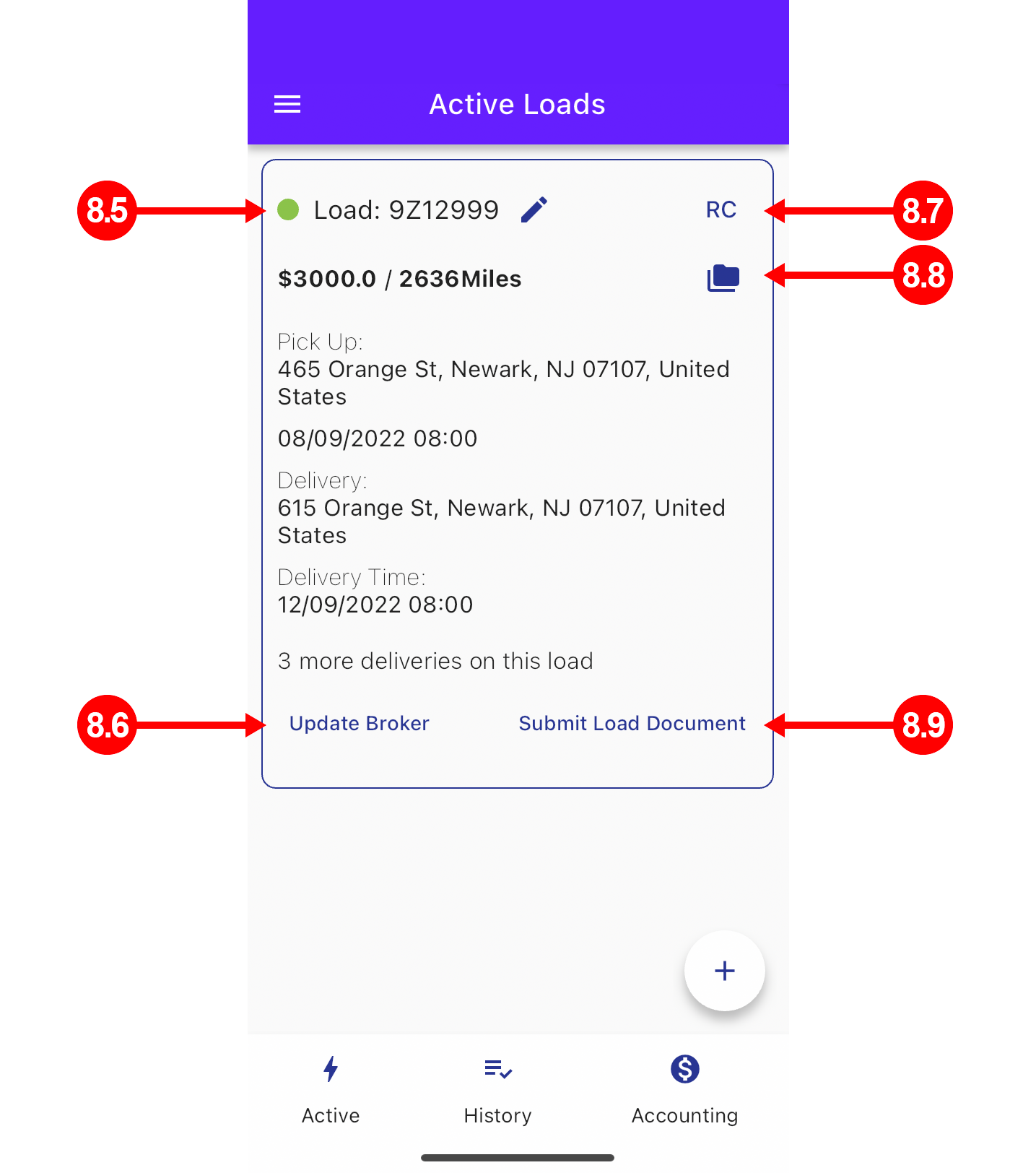
8.5 Visual indicator of the load's status.
8.6 Triggers an email to the broker.
8.7 Access the original RC.
8.8 All submitted files related to the load.
8.9 Add additional files or documents


Load Edit

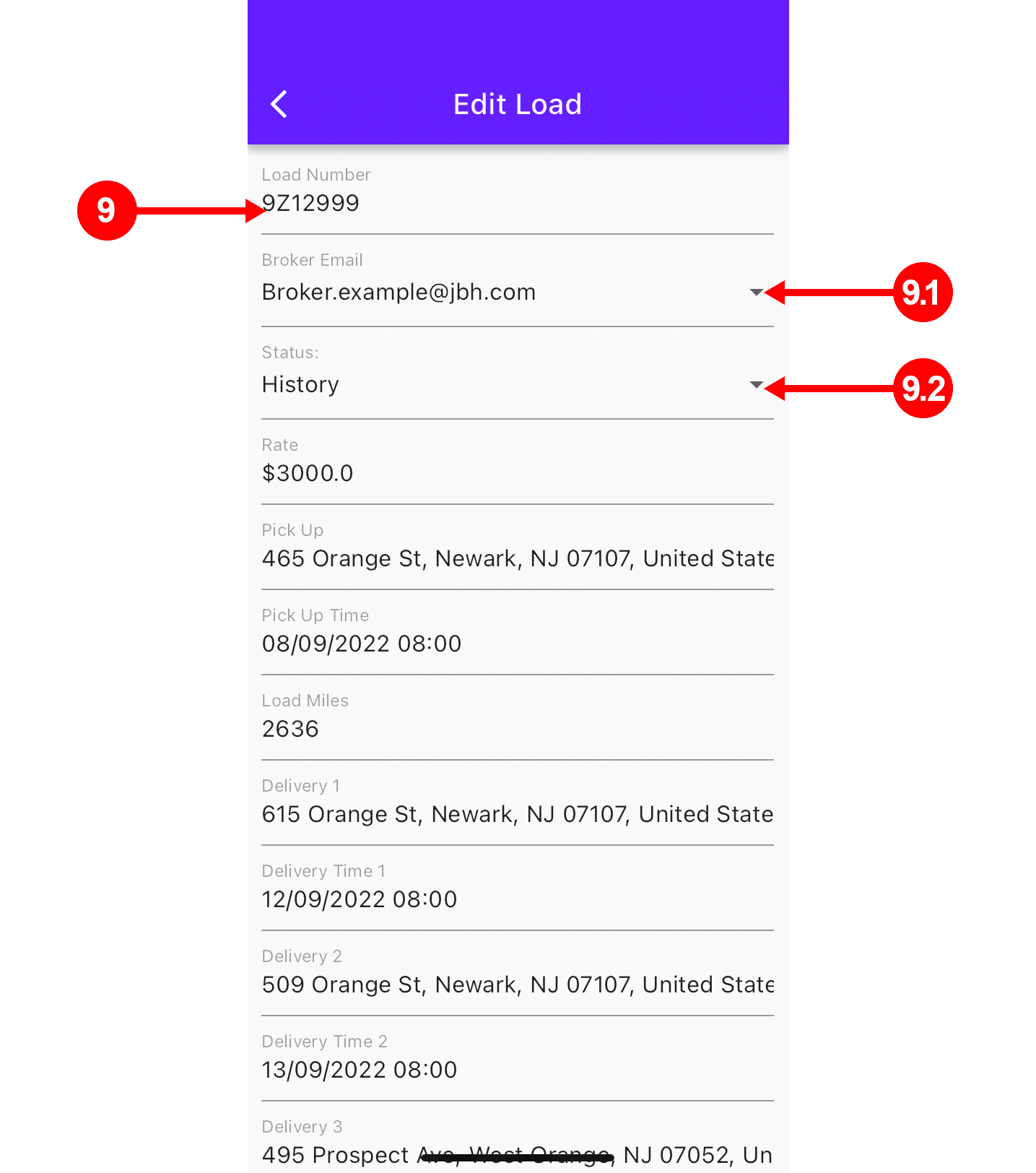
9. Information on the current load displayed here.
9.1 Dropdown with broker email listed in the document.
9.2 Status change.


Page overview

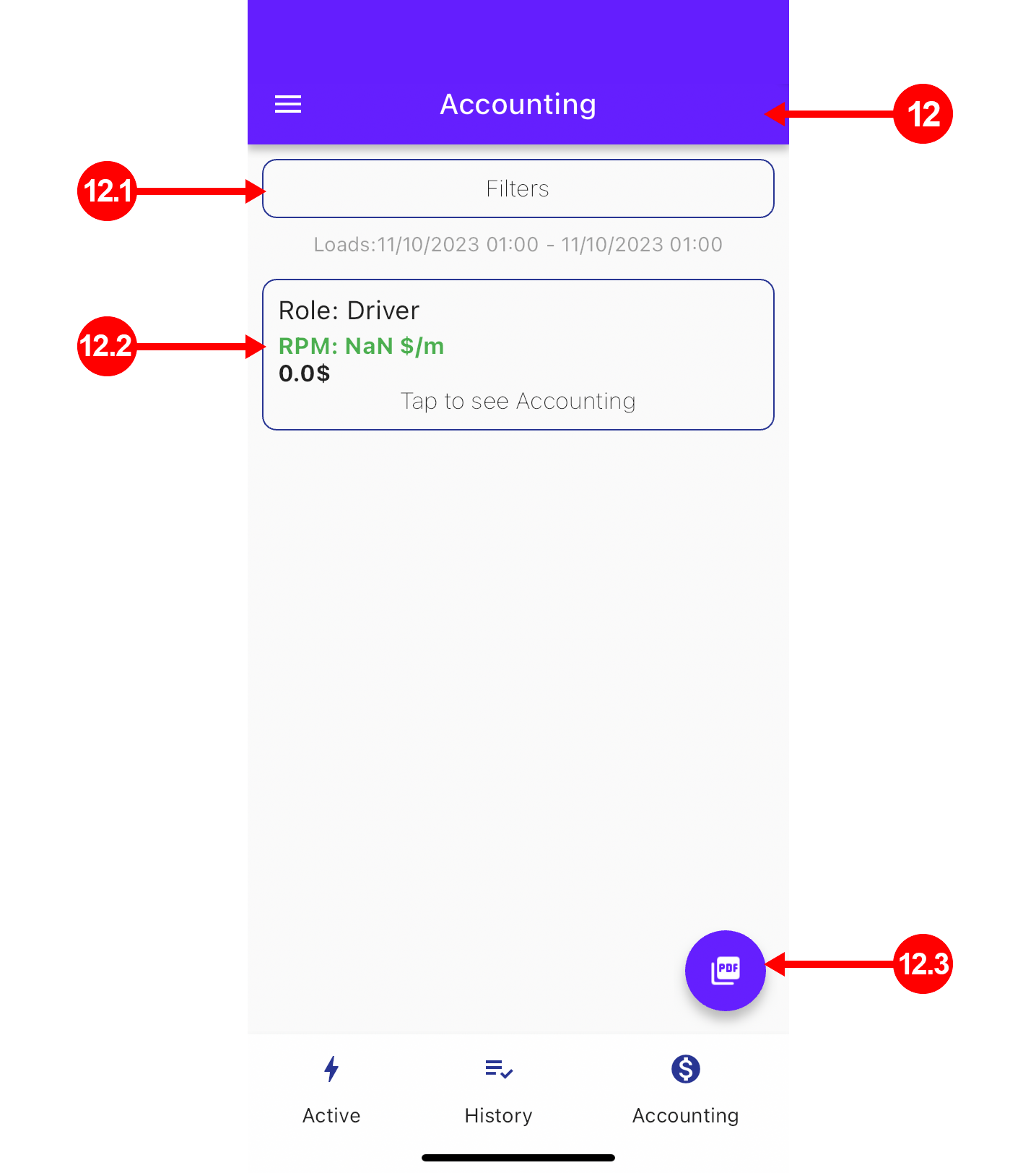
12. View accounting information of loads.
12.1 Specify the loads you want to see using the provided filters.
12.2 Choose a specific load to view detailed accounting information.
12.3 Generate accounting summary of the filtered loads in PDF.


Filters

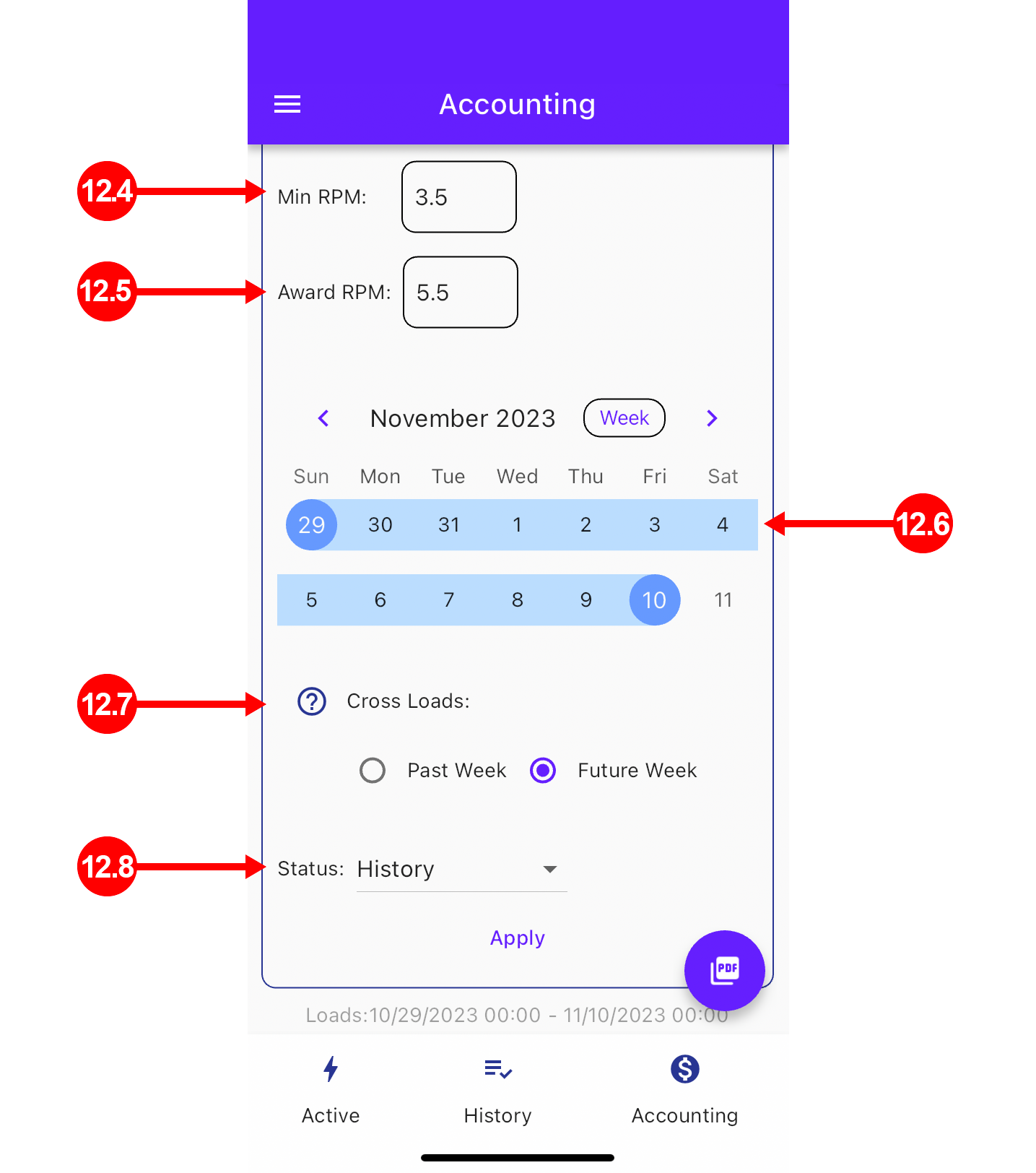
12.4 Identify the minimal Rate per Mile (RPM) value.
12.5 Identify the Award Rate per Mile (RPM) value.
12.6 Only loads within the chosen range will be displayed.
12.7 Loads starting on one week and ending on another week.
12.8 Choose to display accounting for loads with specific statuses.